Library
The Library section in Trailarr is your central hub for browsing and managing your media collection.
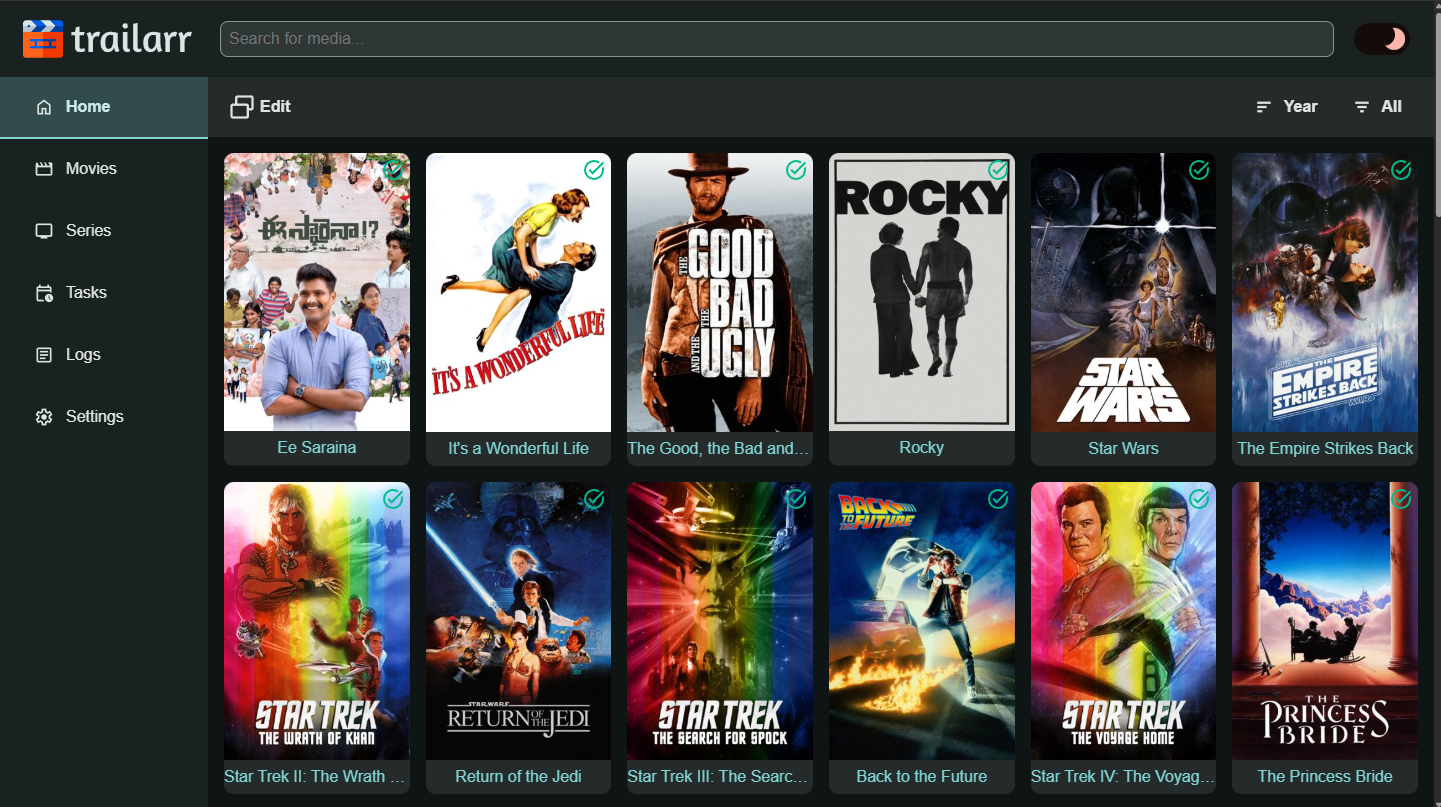
It's comprised of three main views:
- Home: Media items with downloaded trailers (URL: '/home')
- Movies: Movies from all Radarr Connections (URL: '/movies')
- Series: Series from all Sonarr Connections (URL: '/series')
Scroll to display more items
Library displays 50 Media items at a time until it displays them all. More items will be displayed as you reach the end.
Library views offer some features for managing media items. They are described below:
Media Details
Clicking on any Media item will open it's details page. See Media Details for more info.
Sorting
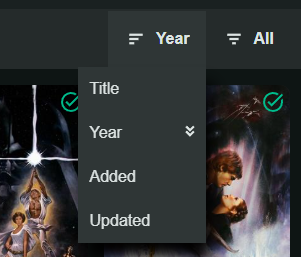
Media items in the view can be sorted using the following options:
- Title
- Year
- Added
- Updated
You can select the same sort option again to switch between Ascending and Descending!
Filtering
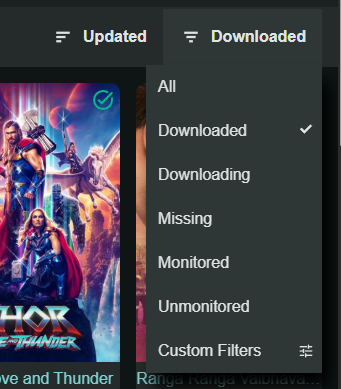
Media items in the view can be filtered using the following options:
- All: No filter applied
- Downloaded: Has at least one downloaded video
- Downloading: Download currently in progress (live)
- Missing: No downloaded video (also includes monitored items)
- Monitored: Monitored for trailer download
- Unmonitored: No downloaded video and not monitored
- Unknown Profile: Media with downloads that have no profile assigned. v0.9.9
- Failing Downloads: Media with a trailer download that failed on two task runs or more. v0.13.1
Status is computed live
v0.10.2 Status is always derived from your actual downloads and the monitor flag: any active download → Downloaded, else monitored → Monitored, else Missing. It can never get stuck or drift out of sync with reality. Downloading is a live indicator of in-progress downloads (updated in real time) — it is not stored, so a crash or restart can never leave items showing Downloading forever.
Downloads with no profile assigned
v0.9.9 When any downloads are not linked to a profile, the media pages show a banner ("N media items have downloads with no profile assigned") with a Review button, and the Unknown Profile quick filter appears in the filter dropdown. Open each media item and assign a profile from the Downloads section (see Media Details) — the banner and filter disappear automatically once every download has a profile.
Downloads that keep failing
v0.13.1 When a download fails on two task runs or more, the media pages show a banner ("N media items have a trailer download that keeps failing") with a Review button, and the Failing Downloads quick filter appears in the filter dropdown. Open an item: the Download Profiles section shows the reason of the last failure and, when Trailarr knows it, the fix. After you fix the cause, download the item again from its page, or select the items and use the batch Download: a manual download does not wait for the next retry. An item leaves the banner when a download succeeds, when you unmonitor it, or when no profile matches it any more.
Tip
There is also an option to add a custom filter to fit your needs. These use the same mechanism as the Filters in Profiles, and view filters additionally get the Download Filters family v0.11.3 — filter by download count, resolution, owning profile, download dates, or deleted files. The filter editor groups the fields into Media, Downloads, and Files. For more information see Filters.
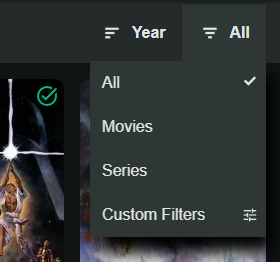
The filters on the Home page are slightly different as it only contains media with downloaded items.
- All: No filter applied
- Movies: Movies only
- Series: Series only
Custom filters are also supported here!
The filter button counts the view
v0.13.0
The filter button reads 2789 / 3746. The first number is how many media items the filter matched. The second number is how many the page can show: every media item on the Home page, every movie on the Movies page, and every series on the Series page.
On the Home page the count tells you how much of your library has a trailer, because that page shows only media with a downloaded video. On the Movies and Series pages, select Downloaded or Missing to get the same count for that type. A media item counts as done when it has at least one downloaded video, whatever the profile asked for. Custom filters get a count too.
When you make a selection for a sort or filter option, browser will remember and apply that next time.
Edit View
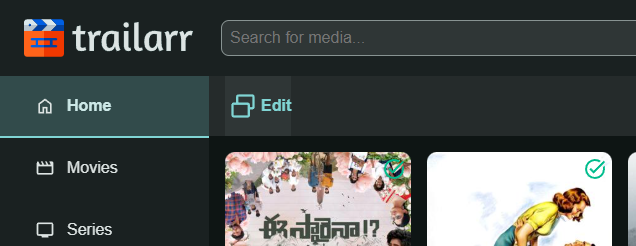
Click on the Edit button in the top bar to enable edit view where you can perform some batch operations.
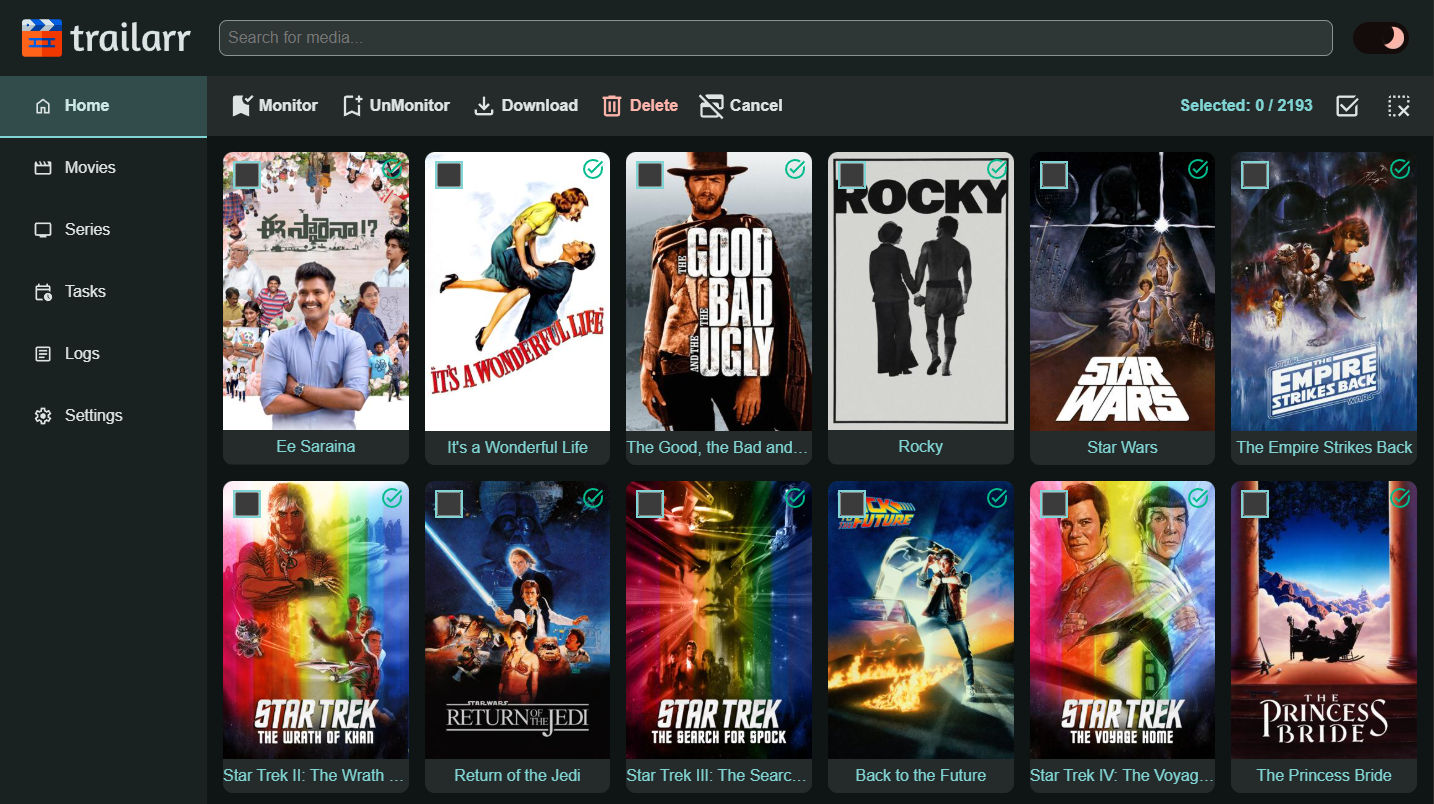
Monitor
This will enable Monitoring of the selected Media items (no effect on items already monitored).
v0.10.2 You can monitor anything — including media that already have a trailer. The download engine decides from per-profile download records, so monitored-and-satisfied media are simply left alone. Monitoring is changed only by you: connection syncs and downloads never touch it.
UnMonitor
This will disable Monitoring of the selected Media items.
However, this will have no effect on items:
- already unmonitored.
Download
This can be used to batch download trailers. Selecting this will open up a dialog asking you to choose a Profile to use for downloading.
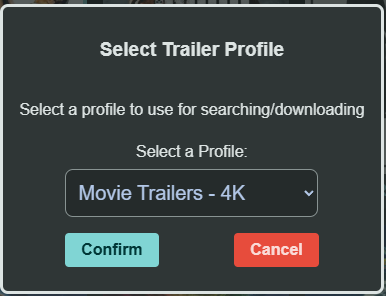
Make a selection and click 'Confirm' to start a background task to download all the trailers for selected Media items.
However, this will have no effect on items:
- with Non-Existing Media folder
- has a downloaded trailer
- media not yet downloaded (if
Wait for Mediais enabled)
Delete
This will delete ALL downloaded trailer files for each selected Media item that has trailers.
Clicking Delete will show a confirmation dialog displaying the number of selected items before proceeding.
Warning
This deletes every trailer file on disk for the selected items — not just one. This cannot be reversed!
Cancel
Cancel the Batch Edit and go back to Normal View.
Select All
Selects all items that are in the view based on selected filter before opening Edit View.
Clear Selections
Clears all selections.